


Dialing from My Office Phone
Simply Dial the full number (as done on any phone or cellphone)
Press "DIAL" (or lift the handset)
Call is connected.
Answer Call.
Press “XFER”.
Enter Extension.
Wait for answer & announce call to colleague (caller on hold)
Press “XFER” again.
Hang up handset.
Call is now successfully transferred.
Call Number / Answer Call.
Press “CONF”.
Dial Another Number.(3rd Party)
Wait for answer & announce call to 3rd party
Press “CONF” again.
All 3 calls are now connected.
Lift and replace handset (Don't press “END”)
Transfer is complete - 2nd & 3rd party is now connected.
Simply enter number on keypad
Press “SAVE”
Enter Name with Alpha-Numeric Keys
Press “SAVE”
Simply start dialing by name on keypad
Phone will bring up matched entries
Select match with arrow key
Press “DIAL”


Yes it is possible. Simply dial
*5*Number
Yes. You a can transfer any call to any available extension in any location.
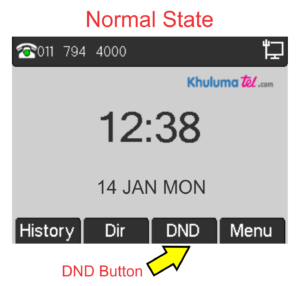
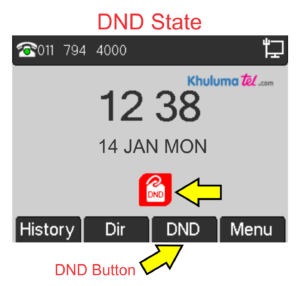
DND Button on my phone does the following:
DND = Do not disturb.
When I enable DND, my phone won't ring any longer. All other extensions in the office operate normally.
When I'm ready to receive calls again - Simply press DND button again and my phone is ready to receive calls.
Note: When all extensions are in DND mode then calls will route to fail-over cell number during business hours.
Trouble Shooting
- Check that power supply is plugged into back of phone
- Ensure power supply is plugged into 220v wall socket
- Check that LAN Cable is connected to back of phone correctly.
- Ensure that office network is connected to internet - supplying your LAN cable.
- Reboot office router and phone if required.
- Ensure your Phone is not on DND (Do Not Disturb)
Approved Service Provider






-
Contact Us
Tel: +27 (0)11 794 4000
WhatsApp: +27 (0)68 648 8060
Customer Care SA
0800 111 800
Contact -
Solutions
-
-
Distribution
Honeydew Business Park
1503 Citrus Street
Honeydew
South Africa